
Apple Shortcuts
We specialize in developing innovative shortcuts for the Apple IOS devices. These shortcuts are designed to make everyday routines process completely on autopilot, saving you the trouble that these tedious tasks provide.
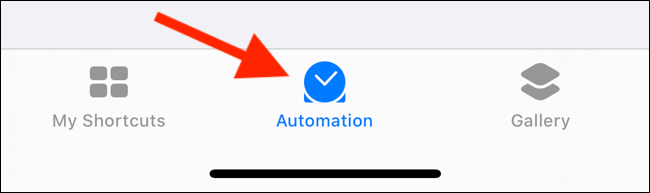
Setup Charging Automation
Step #1:
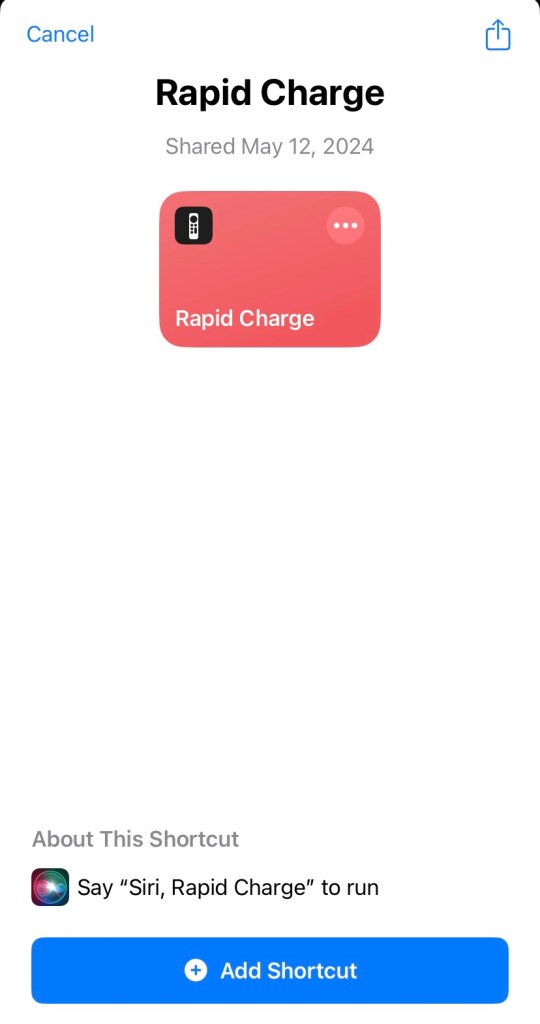
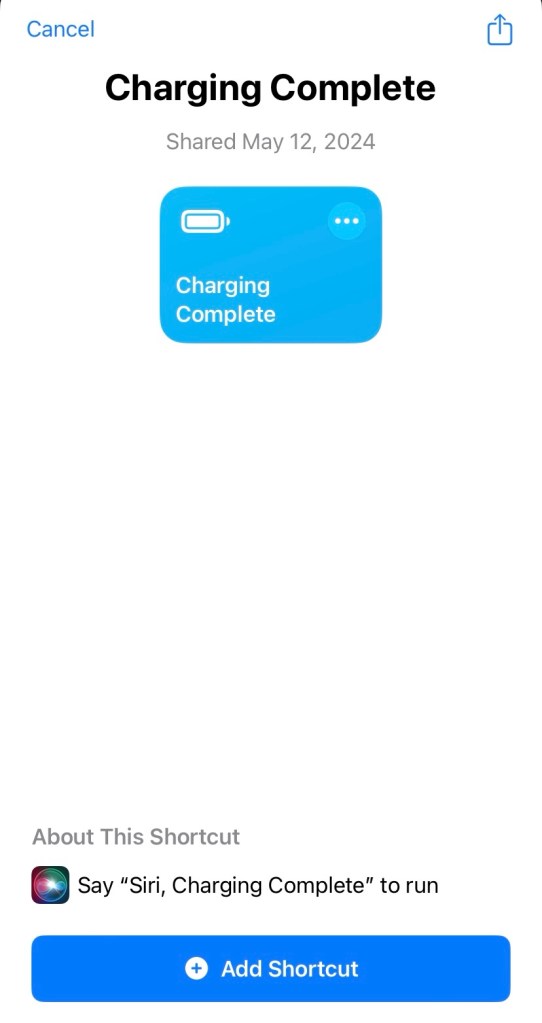
Download both the Rapid Charge and Charging Complete shortcuts from our site and choose Add Shortcut to the Shortcuts app.
Step #2:
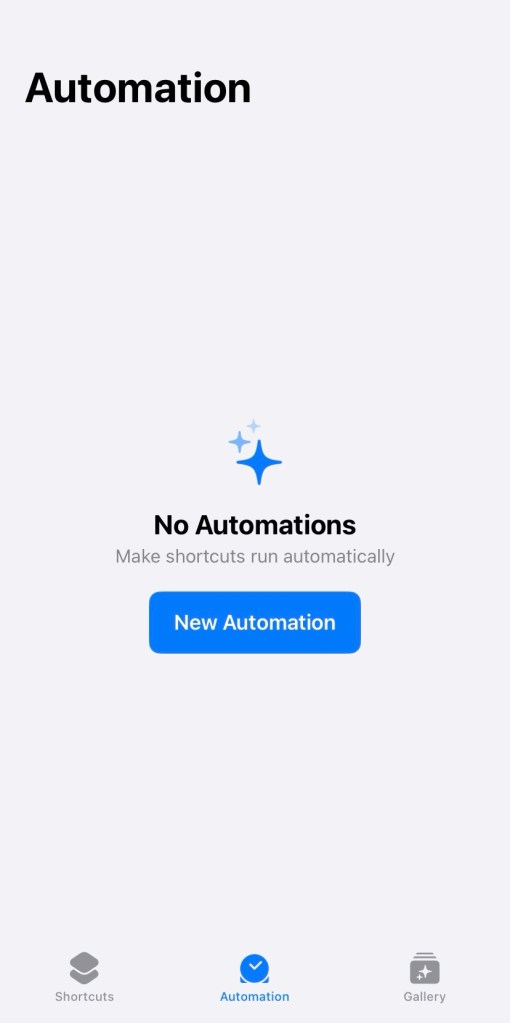
Open the Shortcuts app and go to the Automation section and then click the New Automation button.
Step #3:
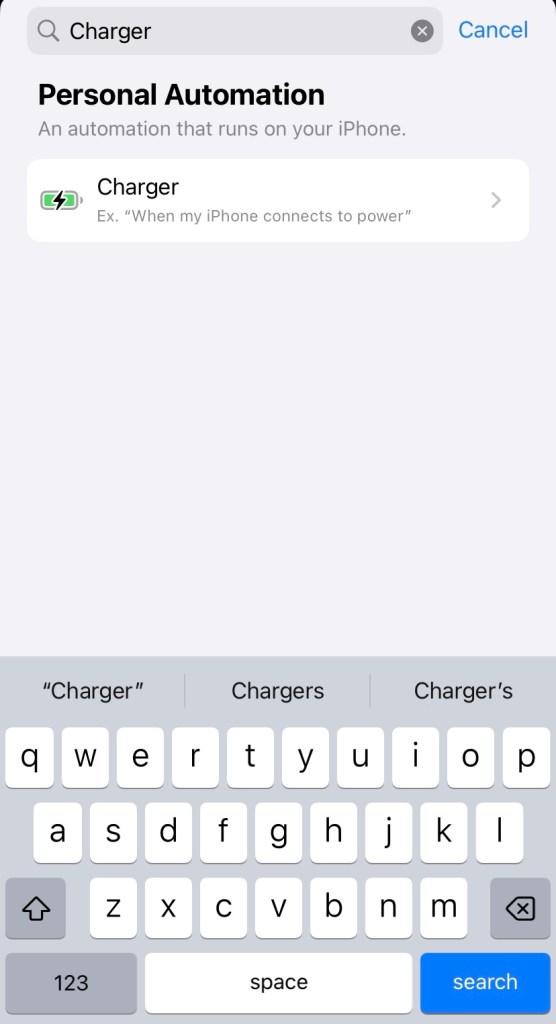
In the search bar, type “Charger” and then select the Charger option.
Step #4:
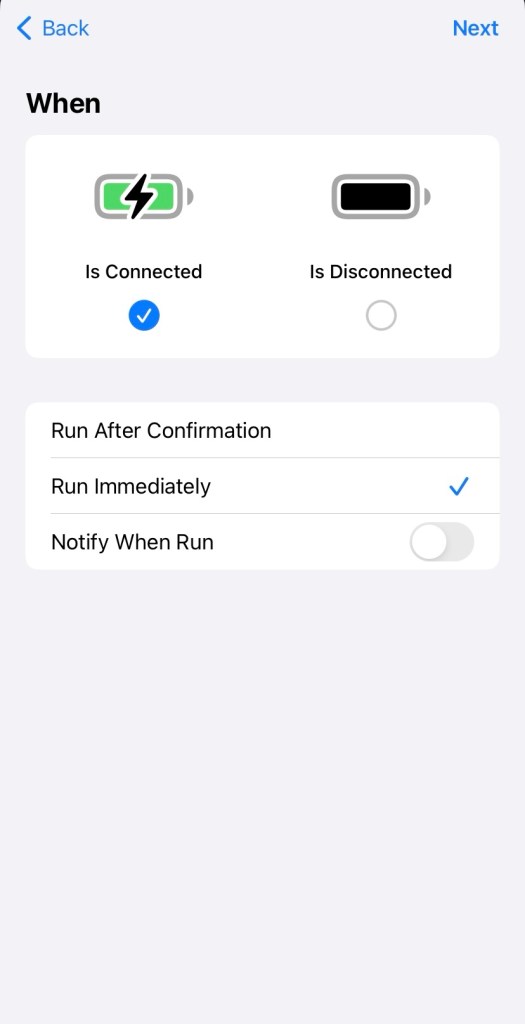
Select the Is Connected option and check the option to Run Immediately and then click the Next option.
Step #5:
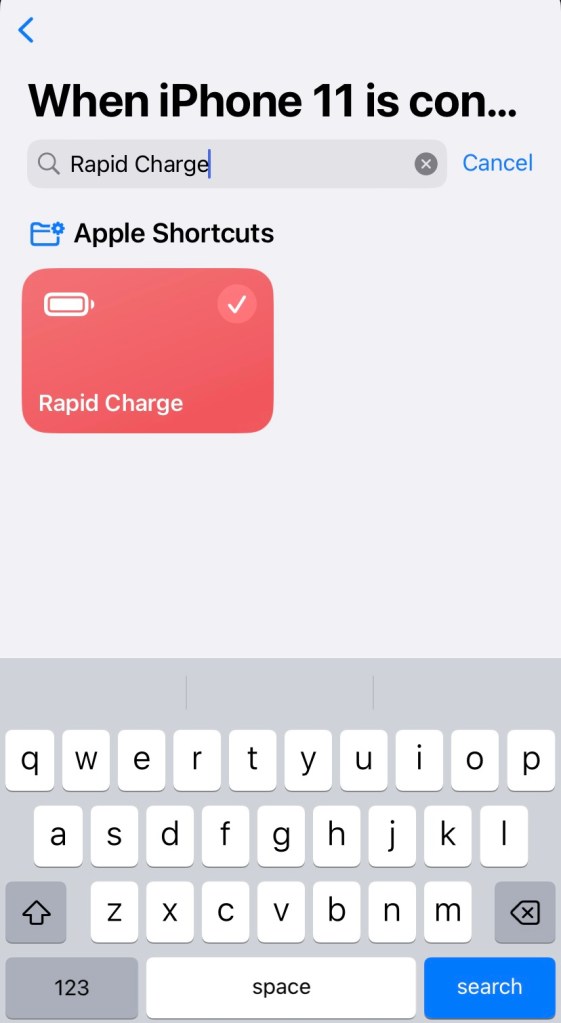
Next, select the Rapid Charge shortcut.
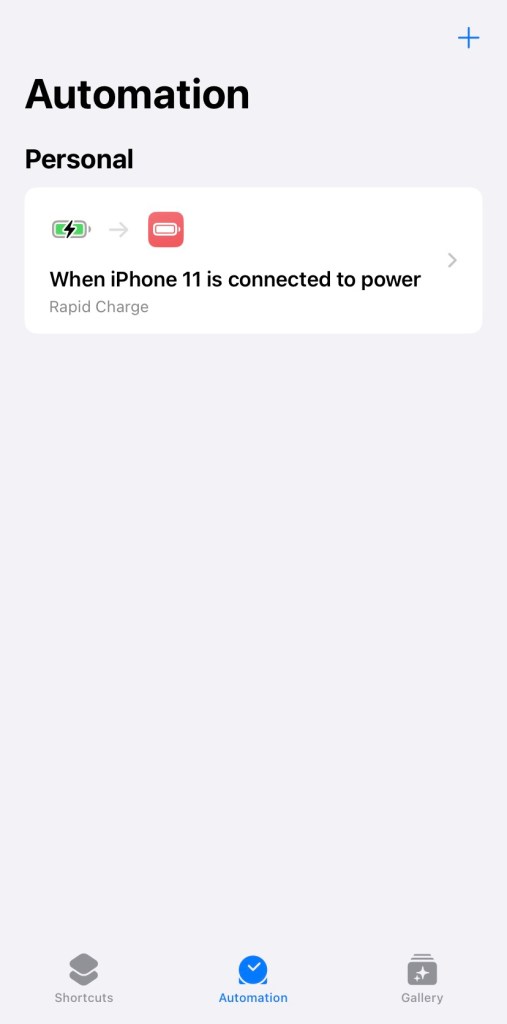
Done! The first part of this automation is now complete. You should see your new automation.
Step #6:
Once again from the Automation section, click the plus (+) in the top right corner to add a new automation.
Step #7:
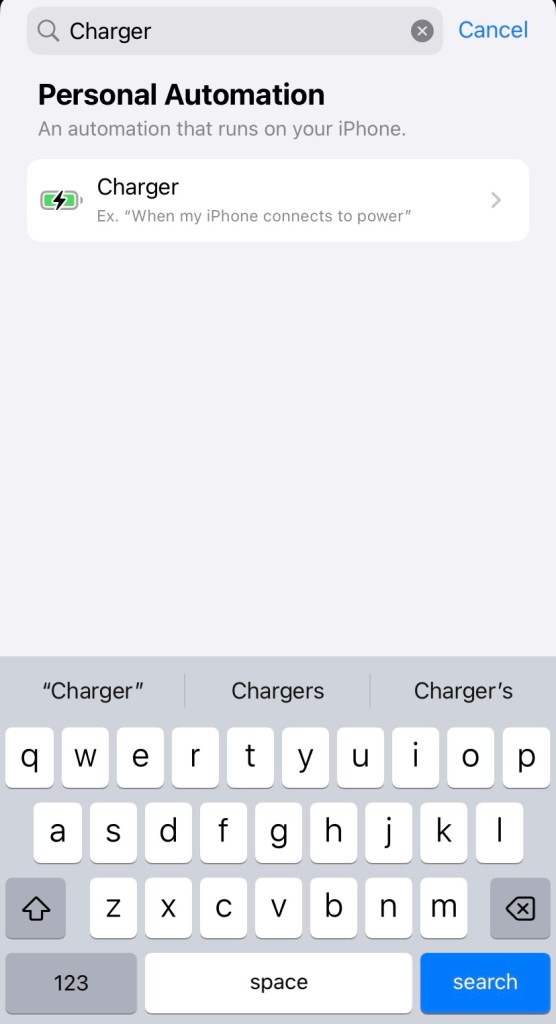
In the search bar, type “Charger” and then select the Charger option.
Step #8:
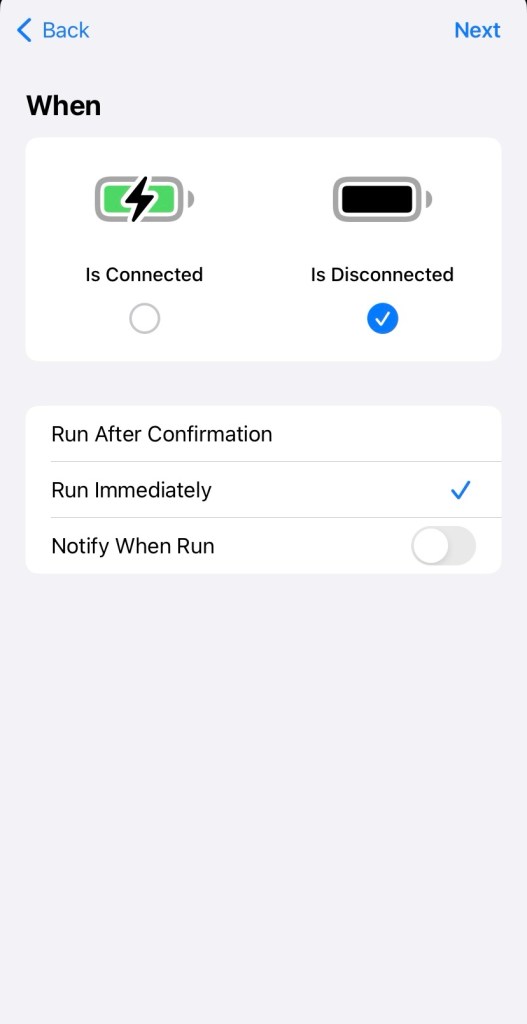
Select the Is Disconnected option and check the option to Run Immediately and then click the Next option.
Step #9:
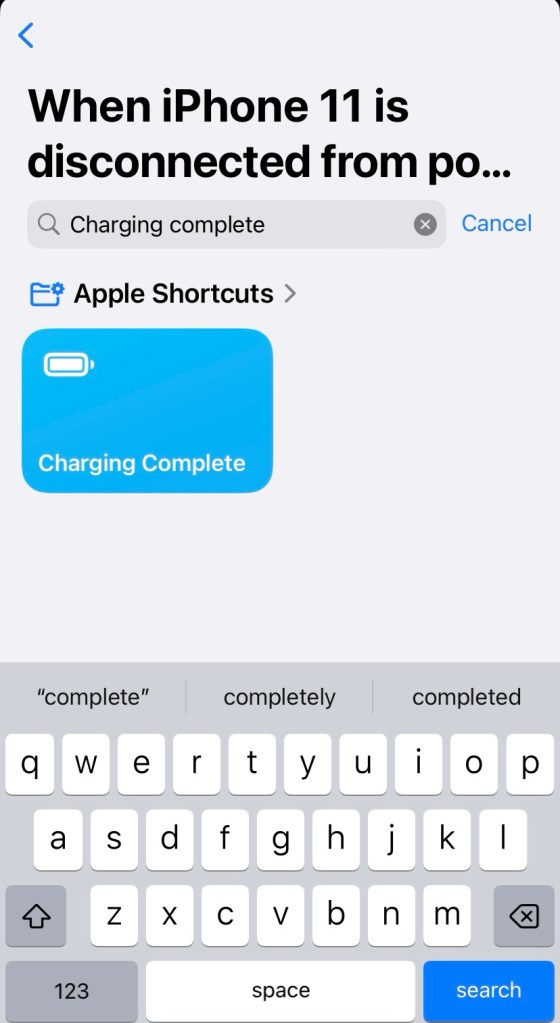
Next, select the Charging Complete shortcut.
Step #10:
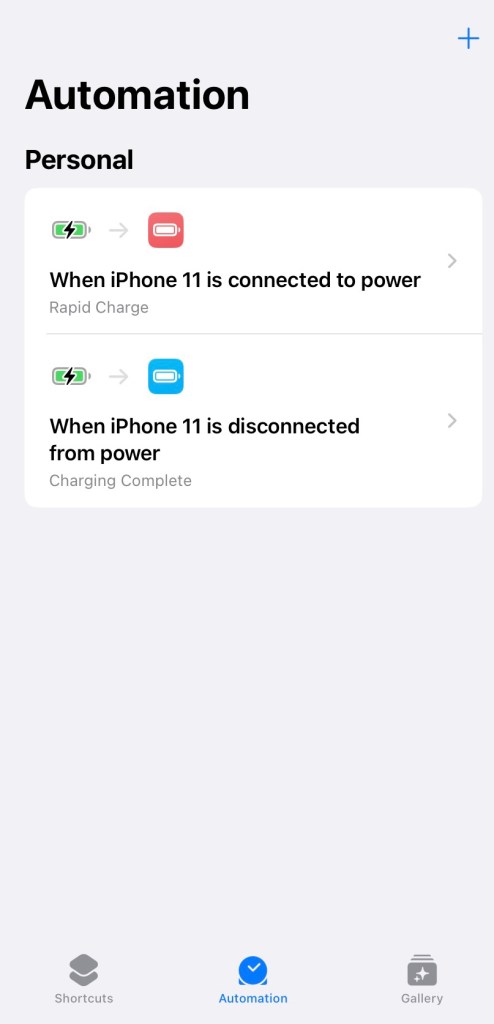
All done! Your automation section will now look like this with the setup automations.
Result:
With these automations setup, once you plug your charger into your device, you will be prompted to choose either Rapid Charge or Normal Charge. When you unplug your device, it will automatically run the Charging Complete automation and turn back on the services that were disabled to faster charge your device.
Video Tutorial:
Watch the video below to see step by step how to setup these automations.
©2024 Lortech Digital Media, LLC.
All Rights Reserved

